
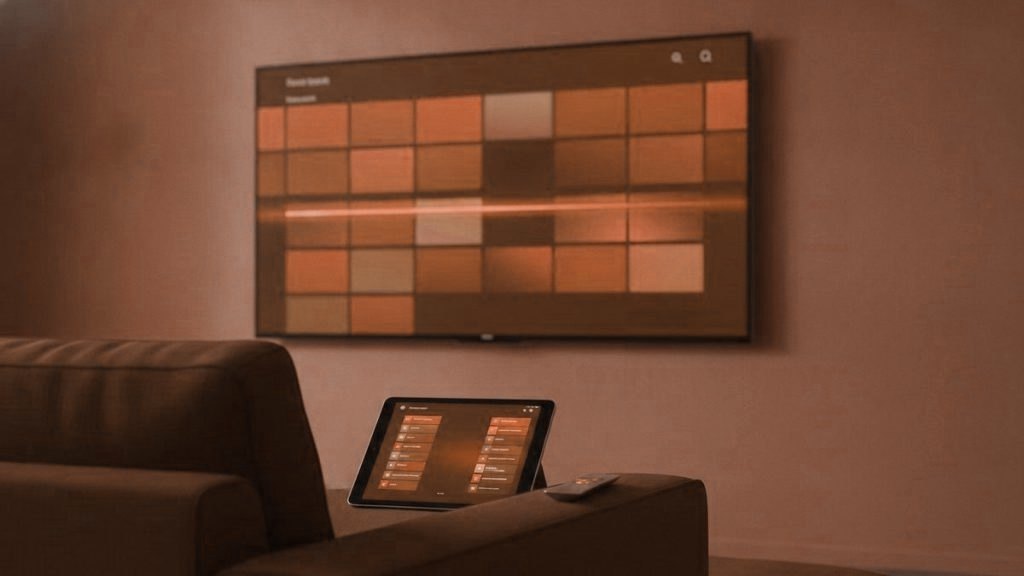
An IPTV player is a piece of software you give your subscription login to, then leave running on a device connected to your home network for hours at a time. Most reviews compare them on menus and guide layouts. Those matter, and they are covered here, but this guide starts with the questions you would ask of any app holding a password: where did it come from, what is it allowed to touch, and what does it keep?
Picks by platform, before the detail
- Fire TV, Android TV and Google TV: TiviMate from the official store for the best guide, or IPTV Smarters Pro for something simpler.
- Samsung and LG televisions: an IPTV player from the TV’s own app store, with care over apps that want your playlist uploaded to a website.
- Apple TV, iPhone and iPad: a player from the App Store. There is no other route on Apple TV.
- Windows, Mac and Linux: VLC for plain playback, or Kodi with its official IPTV add-on if you want a guide.
What a player actually does with your login
Your subscription arrives either as a server address with a username and password, or as a playlist link that has the username and password built into it. The player stores those, uses them to download the channel list and programme guide, and then requests each stream as you change channel. On many servers the address of every stream also contains your credentials.
That means the app necessarily has your login in memory and, in almost every case, saved on the device so you do not have to type it each time. A well-behaved player uses it to fetch channels and nothing else. A badly made or deliberately malicious one could send it anywhere. You cannot inspect the code of most players, so the practical defences are choosing where you get the app, watching what it asks permission to do, and knowing what it leaves behind.
Official stores versus sideloading
What an official store gives you
The Google Play Store, Amazon Appstore, Apple App Store, Samsung’s and LG’s TV stores all apply some level of review before an app is listed. The review is not perfect and nobody claims it is. What you do get is a known developer name on the listing, apps that are signed so a tampered copy will not install as an update, automatic updates that deliver security fixes, and a mechanism for removing apps that turn out to be harmful. Google Play listings include a Data safety section, and App Store listings include App Privacy labels. Both are the developer’s own declarations, but they are declarations the developer can be held to.
What sideloading takes away
Installing an app from a downloaded file, which on Fire TV usually means the Downloader app plus a setting to allow installs from unknown sources, removes most of that. You are trusting the file’s origin entirely. Updates may not arrive unless you fetch them yourself. A modified copy looks exactly like the real thing.
Sometimes sideloading is the only way to get a particular player onto a particular device, and it can be done sensibly:
- Download only from the app developer’s own website, never from a mirror, a forum post, a video description or a link a seller sends.
- Stay away from anything described as “modded”, “premium unlocked” or “pre-configured”. Those are other people’s alterations to someone else’s code.
- On Fire TV, the permission is granted per app, under Settings, My Fire TV, Developer Options (on recent models you reveal that menu by selecting the device name under About seven times). Once the player is installed, turn installs from unknown sources off again for the Downloader app.
- Delete the installer file afterwards.
Apple TV does not allow sideloading for ordinary users at all, which narrows your choice of player but removes an entire category of risk.
Permissions: what a player needs and what it does not
A video player has a modest list of legitimate needs. Anything well beyond it is worth questioning, and on Android-based devices you can deny most permissions without uninstalling anything.
| Permission | Reasonable for a player? | Why |
|---|---|---|
| Network access | Yes | It cannot fetch streams without it |
| Storage or media files | Sometimes | Recording programmes, loading a playlist file, saving backups |
| Microphone | Optional | Only for voice search; deny it if you never use that |
| Notifications | Optional | Recording reminders; harmless either way |
| Location | No | A player has no use for where you are |
| Contacts, SMS, call logs | No | No playback feature needs them |
| Camera | No | Nothing to photograph |
| Install other apps | No | A player should never install software on your behalf |
On a Fire TV you can review an installed app under Settings, Applications, Manage Installed Applications, then the app’s Permissions entry. On Android TV and Google TV devices, look under Apps in the settings menu. On phones, the app’s info page lists every permission and lets you revoke them one by one.
What the app keeps on your device
Players store more than people assume, and all of it stays behind until you clear it:
- Your login or playlist address, which as explained above is your account.
- A cached channel list and programme guide, so the app opens quickly.
- Favourites and viewing history, including recently watched channels on the home screen for anyone who picks up the remote.
- Recordings, in players that support them, written to internal or USB storage.
- Backup files, which normally include your playlist details. A backup saved to cloud storage puts a copy of your login there too.
Two habits cover most of this. If other people use the television, set the player’s parental or profile lock where it has one, so your history is not the first thing on screen. And before you sell, lend or recycle a device, clear the app’s data or factory reset the whole thing, then ask your provider to change your password so any copy left behind stops working.
The main players, looked at through this lens
TiviMate
Android only: Fire TV, Android TV, Google TV and Nvidia Shield. It is listed in Google Play, so on Google TV devices it installs from the store with no sideloading. It has the most polished programme guide of any common player, plus catch-up and recording. The free version is usable; Premium is bought through the separate TiviMate Companion app on an Android phone. Because it records, it asks for storage access, which is legitimate. Its backup feature exports your playlists, so treat that file as sensitive. There is no TiviMate for iPhone, iPad or Apple TV, so any app claiming to be it there is something else.
IPTV Smarters Pro
Available across many platforms and simple to set up with a server address, username and password. Its presence in each official store has changed over time and varies by platform and region, so check your device’s store first. On Fire TV it is commonly installed from the developer’s own website through Downloader, in which case the sideloading advice above applies. It supports several user profiles on one device, which helps keep household viewing separate.
Smart IPTV and IBO Player
Popular on Samsung and LG televisions because they are in those TVs’ own stores. Both work differently from the players above: you open the app, note the device identifier it shows (a MAC address, and for IBO Player a device key), then go to the developer’s website and upload your playlist link against that identifier. Both charge a small activation fee per device after a trial period.
The privacy consequence is plain. Your playlist link, which contains your login, is now stored on a third-party server tied to your television’s hardware identifier. These are established apps and that design is how they get around the limits of TV platforms, but you should know it happens. When you stop using the app or change provider, remove your playlist through the developer’s website and ask your provider for a new password.
VLC
Free, open source and available on Windows, Mac, Linux, Android, iPhone, iPad and Apple TV. It will open an M3U playlist and play channels with no account and no uploads. It is not built around a live TV guide, so it is better for occasional viewing or checking a stream than for nightly channel-hopping.
Kodi
Also free and open source. With the PVR IPTV Simple Client add-on, which comes from Kodi’s official repository, it becomes a full live TV player with a guide. Kodi’s reputation problem comes entirely from third-party add-ons and “builds” distributed outside that repository. Those are where malware and unlicensed content live. Official repository only, and Kodi is a perfectly respectable choice.
Players on Apple devices
Apple TV, iPhone and iPad get apps from the App Store only. Players such as iPlayTV and GSE Smart IPTV are listed there. Read the App Privacy label on the listing, which shows what data the developer says it collects and whether any is linked to you. Look-alike names are common in this corner of the store, so check the developer name rather than the icon.
Reading a store listing in two minutes
- Developer name. Does it match the app you meant to install? Tap it and see what else they publish.
- Privacy section. Data safety on Google Play, App Privacy on the App Store. Look for tracking and data linked to you.
- Last updated. An app untouched for years is not receiving security fixes.
- Reviews mentioning ads or pop-ups. Ad-heavy free players bring advertising identifiers with them.
- Anything claiming to include channels. A legitimate player ships empty. One that arrives full is carrying someone else’s account.
Free players, advertising and what pays for them
Developers have to be paid somehow. Some players charge a one-off activation fee, some sell a premium tier, some are open-source projects run by volunteers, and some are funded by advertising. None of these models is wrong, but they have different privacy costs. An ad-funded player brings an advertising network’s code into the app, and with it your device’s advertising identifier and some information about how you use the app. A paid tier or a small activation fee is often the quieter option. On Android-based devices you can limit the effect by deleting or resetting the advertising ID in the privacy settings, and on a Fire TV by switching off interest-based ads. Neither affects playback.
Clones, look-alikes and “modded” builds
Popular player names attract imitators: similar icons, one letter changed, a listing that borrows screenshots. On Android devices, modified builds of paid players circulate with the premium features unlocked. The price of that unlock is running code altered by someone whose motives you do not know, on a device that holds your login and sits on your home network. The genuine Premium tiers are inexpensive by comparison, and the free versions of the main players are fine for most people.
What we suggest to MYTIVIFLIX customers
Every plan works with standard players, so you can choose the one that fits your device and your comfort level. For most people on Fire TV or Google TV that is TiviMate or IPTV Smarters Pro. On Samsung and LG televisions, use a player from the TV’s store and follow our Samsung or LG guide. On Apple devices, see the Apple TV and iPhone guide. If you prefer to avoid store players entirely, the M3U playlist guide covers VLC and Kodi. Every guide is listed on the setup page, and the 24-hour trial lets you try a player with a real login, and no card, before you commit to anything.
Frequently asked questions
Which IPTV app is best?
It depends on the device. On Fire TV and Google TV, TiviMate has the best guide and IPTV Smarters Pro is the simpler option. On Samsung and LG TVs, use a player from the TV's own store. On Apple TV and iPhone, choose from the App Store. On computers, VLC or Kodi with its official IPTV add-on.
Is it safe to sideload an IPTV app?
It can be done carefully, but it removes the checks and automatic updates an official store provides. Download only from the developer's own website, avoid anything labelled modded or premium unlocked, and on Fire TV turn installs from unknown sources back off once the player is installed.
What permissions should an IPTV player have?
Network access, and storage if it records programmes or loads playlist files. Microphone access is only needed for voice search. A player has no reason to access your location, contacts, text messages, call logs or camera, or to install other apps.
What does an IPTV app store on my device?
Usually your login or playlist link, cached channel lists and programme guide, favourites, viewing history, and any recordings or backups. Before selling or giving away a device, clear the app's data or factory reset it, then ask your provider to change your password.
Why do Smart IPTV and IBO Player need a website upload?
On Samsung and LG TVs these apps link your playlist to the TV's hardware identifier through the developer's website, so your playlist link, which contains your login, is stored on their server. When you stop using the app, remove the playlist on their site and ask your provider for a new password.
Is TiviMate available on iPhone or Apple TV?
No. TiviMate runs only on Android-based devices such as Fire TV, Android TV, Google TV and Nvidia Shield. Any app claiming to be TiviMate on Apple devices is from someone else. On Apple TV and iPhone, choose a player from the App Store and check its privacy label.
See all 25,000+ channels before you commit
One WhatsApp chat, no card kept on file, a login in under 15 minutes and 7 days to ask for your money back.
Related articles
Private IPTV for the Whole Family: No Accounts, No Tracking
Quick answer: Private IPTV for a family means one service across every room without separate named accounts, without a shared email and…
October 15, 2026IPTV Payment Privacy: Paying Without a Subscription Trail
Quick answer: IPTV payment privacy means paying for each period deliberately instead of leaving a stored card that auto-renews and builds a…
October 15, 2026What Your Smart TV Already Knows About Your Viewing
Quick answer: Many Smart TVs track viewing through a feature called ACR (automatic content recognition), which samples what is on screen and…